
Entries
Keep your characters, places and groups in the Codex, each with a page of its own.
The Codex holds what you know about your story, such as who's in it and where it happens. Every character, place and group is an entry with a page of its own.
Click Codex at the top, or press ⌘3 (Ctrl+3 on Windows).
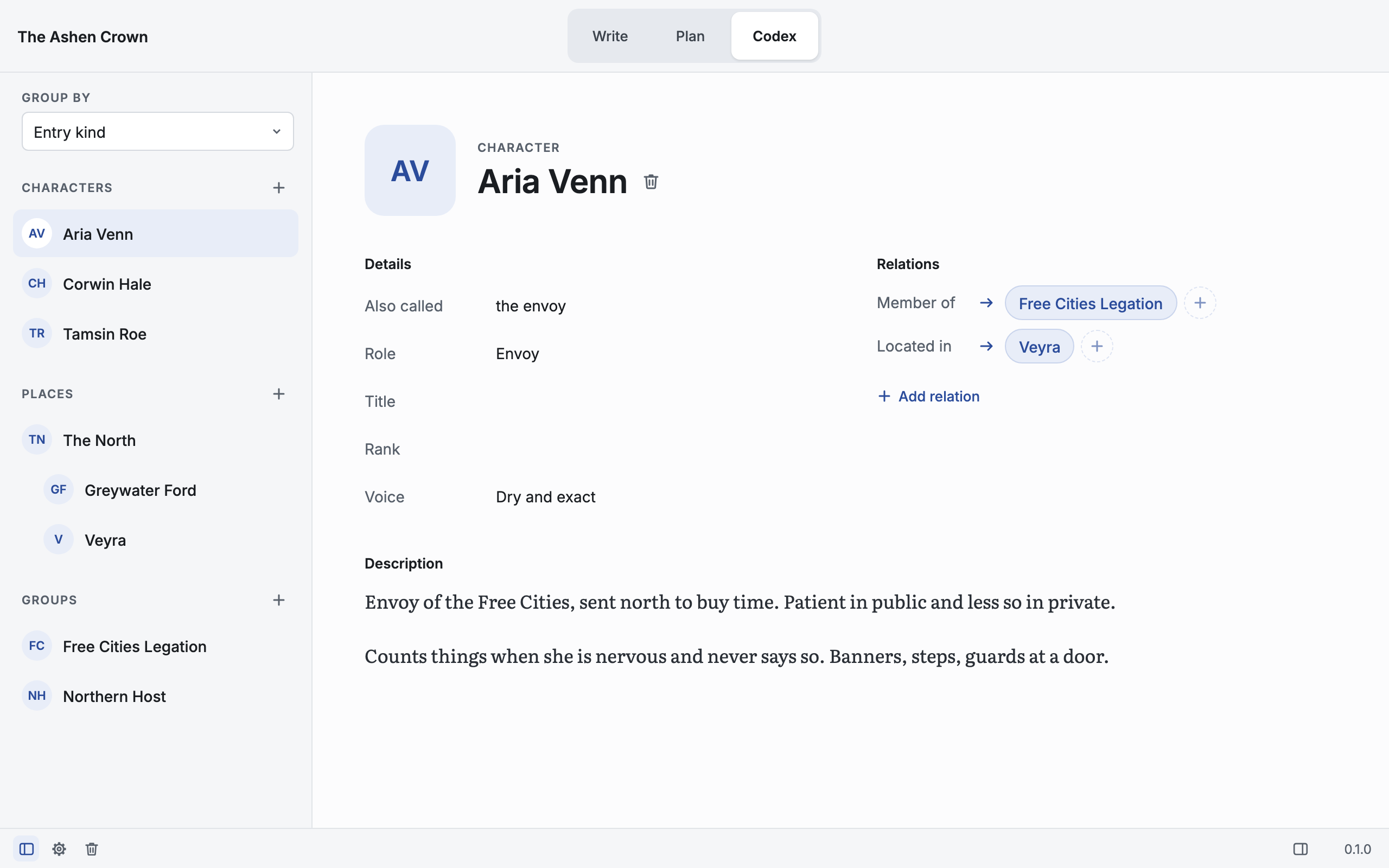
See your entries
The list on the left shows your entries by kind, such as Characters and Places. An entry that's part of another sits under it, one step in: a gate under its city. Hide the list with the button at the left end of the status bar.
Click an entry to open it. Its page shows its kind, its name, its details and its relations.
Add an entry
Click the + next to a kind's heading in the list, type the name and press Enter. Press Esc to leave it.
Fill in an entry
- Details: type in a field, then press Enter or click elsewhere. The boxes show when you point at them or type in them.
- Also called: other names for the entry, separated by commas.
- Description: write about the entry as you write a scene. Spellcheck works here too.
Rename an entry
Click its name at the top of its page, type the new name and press Enter.
Put an entry inside another
Drag it in the list onto the entry it belongs in, such as a town onto its region. The entry it would go into lights up. Let go, and it sits under it, or shows "part of …" under its name when the two are of different kinds. To take it out again, drag it onto its kind's heading, such as Places.
With the keyboard, select it in the list and press Option+→ (Alt+→ on Windows) to put it inside the entry above it, and Option+← to take it one step out. Put the entry inside the one above and Take the entry out of the one it is in in Commands do the same for the open entry.
You can also do it from the entry's relations, with Part of and Has part. See Relations.
Move an entry to the trash
Click the trash can next to its name. Undo brings it back. See Undo and the trash.
Versions of a description
A description has versions, as a scene does. Open the side panel with the button at the right end of the status bar, or choose Show Versions in Commands.
- Save version keeps the description as it is now. Save a version of the description in Commands does the same.
- Click a version to read it in place of the description. Back to your description, or Esc, goes back.
- Restore this version brings it back. The description you had becomes the newest version, and Undo gets it back at once.
- Right-click a version to rename it or move it to the trash, or press F2 to rename it.
Only the description has versions. The details, the other names and the relations stay as they are when you restore.
Good to know
- ⌘Z (Ctrl+Z) outside the text undoes a new entry, a rename, a move, a detail you changed or a trip to the trash.
- Each entry is a Markdown file in your project's
codexfolder, named after the entry. Arrange the folders as you like: where a file sits doesn't change where its entry shows in the list. - An entry can't go inside itself, or inside an entry that's already inside it. It's part of one other entry at a time.
- Dragging doesn't change the order of the list. To drag, group the list by Entry kind.
- If a description changes outside Qwil while you type in it, what you typed is a version, Your typing before an external change.
- With every kind of entry turned off, the Codex says so, with a button to Open Settings.