
Import a Word file
Turn a manuscript you wrote in Word into a project, and see how it divides before anything is made.
Wrote your book in Word? Import it, and it becomes a project with its parts, chapters and scenes. Before anything is made, you see how it divides and fix any heading that came out wrong.
Import a Word file
- On the start screen, click Import. With a project open, choose File › New Project › From Word File in the menu bar, or type "import" in Commands.
- Choose the
.docxfile. - Check your manuscript on the right. It shows the way it will come in: each part, chapter and scene, with its words.
- Under Your project, check the Title and the Language.
- Click Import, then choose the folder your project goes in. It opens.
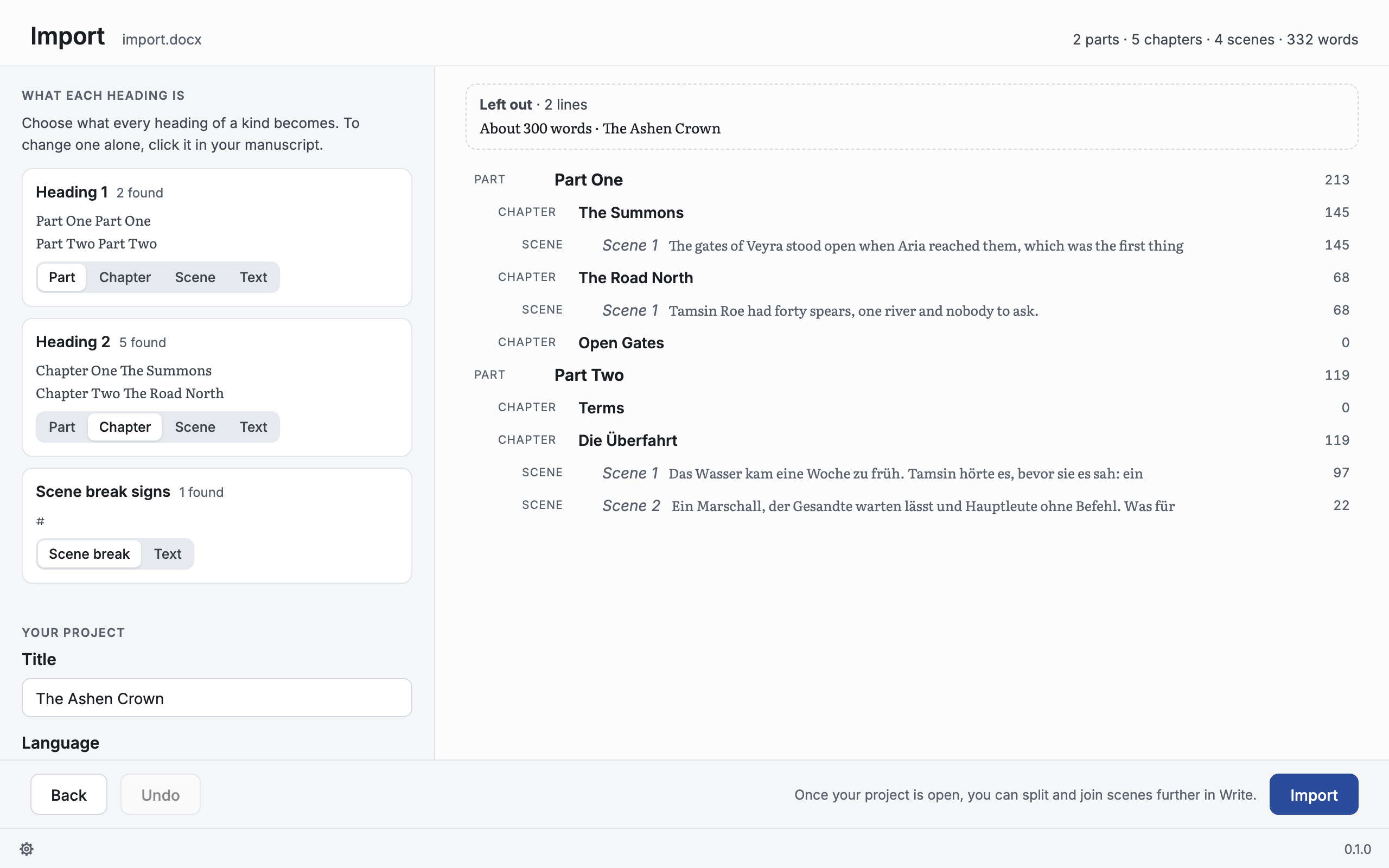
Choose what each heading is
Under What each heading is, every kind of heading in your file has a row of buttons: Heading 1, Heading 2, or headings typed without a style, such as Headings like “CHAPTER I.”. Click Part, Chapter, Scene or Text, and every heading of that kind changes at once.
Scene break signs and Blank lines divide scenes work the same way: make them a Scene break, or turn them into Text.
To change one heading on its own, click it in your manuscript and choose under This heading. Undo, or ⌘Z (Ctrl+Z on Windows), takes back your last change.
Bring an export back in
A Word file Qwil exported says what its headings are. Import it, and your parts, chapters and scenes come back as they were, whatever profile made the file. If the profile showed scene titles, your scenes get their titles back too.
Good to know
- What comes before the first heading, such as a dedication, goes to the shelf. The title, the author, a table of contents and "The End" are left out. The box above your manuscript lists them under Left out, with any footnotes, comments and images.
- A scene with no title of its own is called Scene 1, Scene 2 and so on in its chapter (Szene 1 in a German project). Rename it in Structure.
- A prologue, an epilogue or the acknowledgments come in as chapters.
- Text you hid in Word comes in as a note.
- Press Esc to leave. Once you've changed something, Qwil asks before it drops your choices. The Word file stays as it is.
- Only Word files (
.docx) import. Changed the file after you chose it? Go back and choose it again. - Split or join scenes once the project is open. See Split and join scenes.
- A level the export profile hid isn't in the file, so it can't come back: a book exported without its parts comes back as chapters. Once another program such as LibreOffice has saved the file again, it imports like any other Word file.