
Your own profile
Change a profile's look, and keep it for this project or for all of them.
Every profile can be changed in Export, and your changes can become a profile of your own.
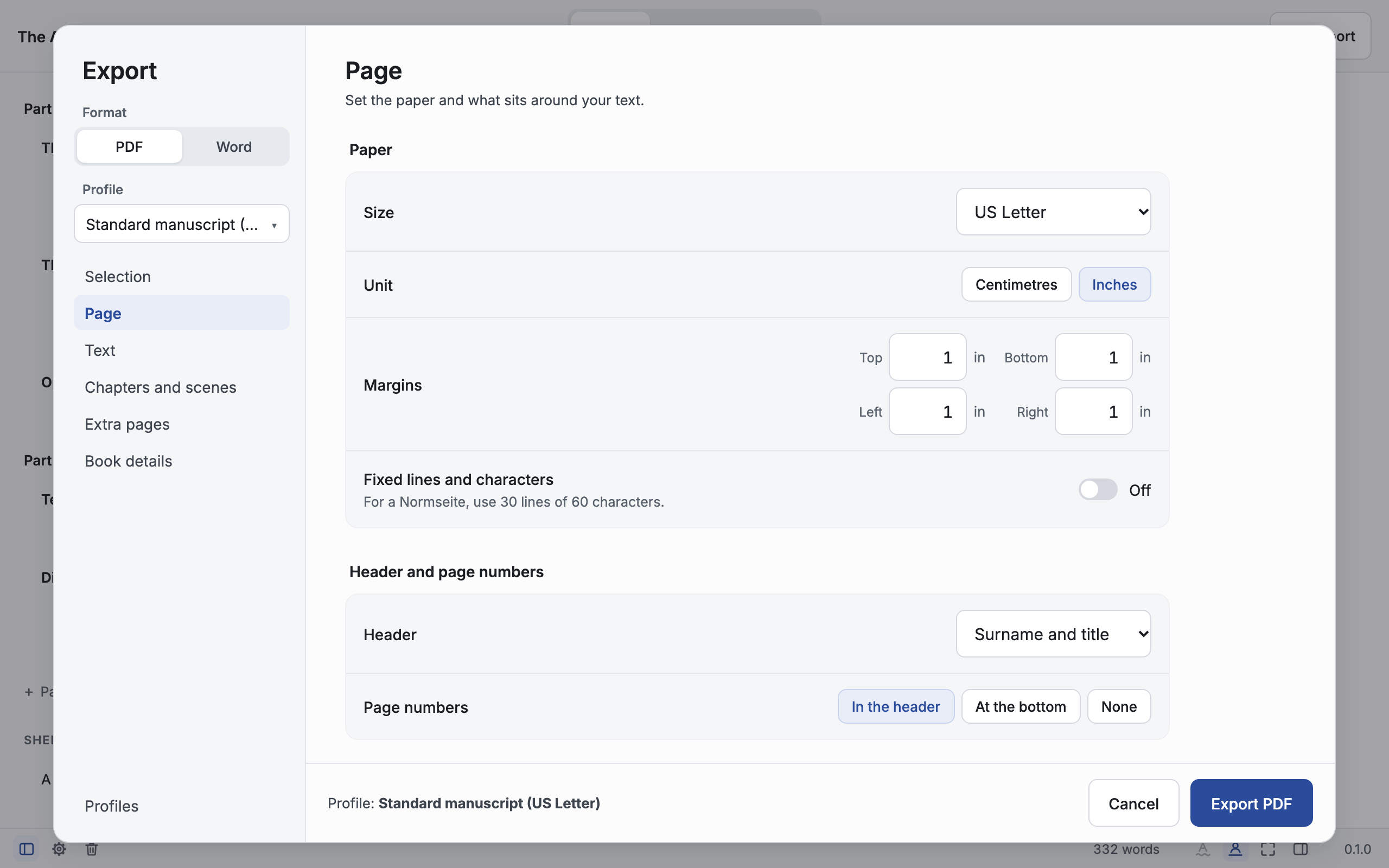
Change a profile
- In Export, choose a profile.
- Choose Page, Text, Chapters and scenes or Extra pages, and change what you like.
- Page: the paper, its margins, the header and the page numbers.
- Text: the font, its size and spacing, alignment, hyphenation, indents, and whether italics come out as underlining.
- Chapters and scenes: how each level shows, the headings, and the sign between scenes. See Headings and the title page.
- Extra pages: the title page.
A changed row shows a reset icon after its name: click it to take back that one change. A dot marks each category you changed, and the profile. Discard changes, at the bottom, takes them all back.
You can export with your changes without saving them.
Save it as your own
- Click Save as new at the bottom, or Save as new profile in the Profile list.
- Give it a Name.
- Tick Use in all your projects if you want it everywhere, not only in this project.
It shows under Custom in the Profile list from then on.
Update, rename or delete
- To update your own profile, change it, then click Update profile at the bottom.
- To rename or delete one, click Profiles at the bottom of the bar, or Manage profiles in the Profile list. Rename and Delete sit beside each of your own. Use chooses one.
Deleting a profile moves its file to the trash. Your exports stay as they are.
From Word to PDF, or back
Choose a profile, switch the Format, then click Save as new. A built-in profile that also comes in the other format switches to it on its own, with your changes kept.
Centimetres or inches
In Page, choose Centimetres or Inches under Unit. Picking a paper size in the other unit, such as US Letter or 6 × 9 in, switches it for you.
Pick a font
In Text, click the font and type part of its name. On this computer lists your computer's fonts. For a PDF, Included with Qwil lists fonts every PDF can use, wherever it's opened: Literata, Liberation Serif and Liberation Mono. Liberation Serif sets your text line for line like Times New Roman, and Liberation Mono like Courier New.
A Normseite of your own
In Page, turn on Fixed lines and characters, then set the lines on a page and the characters on a line. The right margin then follows the characters on a line.
Good to know
- With changes you haven't saved, choosing another profile or closing Export asks first. Cancel keeps your changes. Discard drops them.
- A profile can't share a name with another, built-in ones included.
- A font that isn't installed shows "Not installed on this computer".
- Widow and orphan control keeps at least two lines of a paragraph together at the top and foot of a page. Turn it off to fill every page, as a Normseite does.
The profile's file
A profile you save is a small text file holding only what you changed from the profile it started from. A profile for this project lives in its export folder. One for all projects lives in Qwil's own folder. Lines and comments you add to the file by hand stay when you update it.
A profile saved in inches says unit: in in its file, and holds its lengths in inches. One without it holds centimetres.
If a profile's file has a mistake, it shows in the list with what to fix, and you can't choose it until you do.