
The outline and the shelf
See your whole book with a synopsis and a status for every part, chapter and scene, and change its shape.
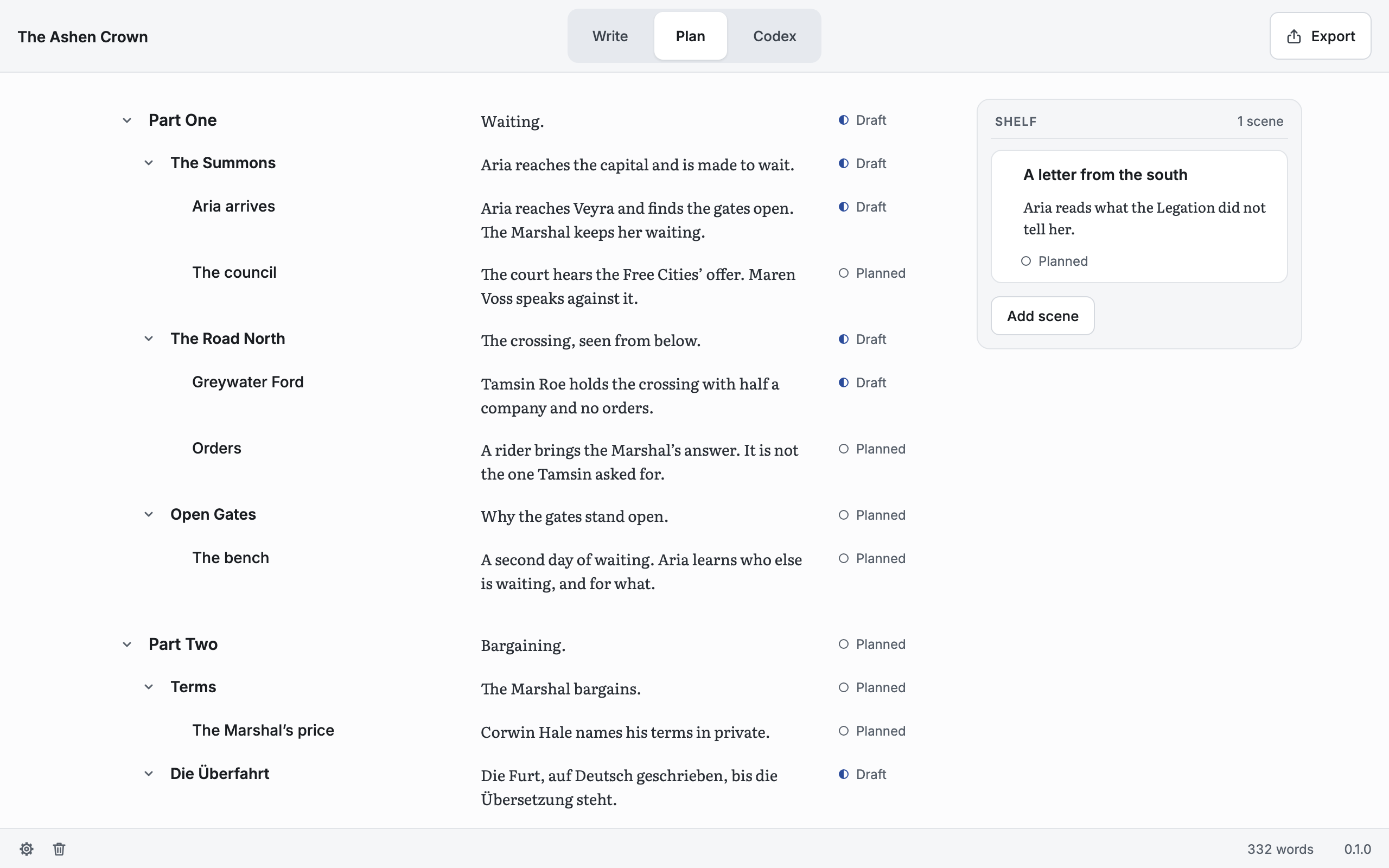
Plan shows your whole book as an Outline: every part, chapter and scene, with its synopsis and its status. Beside it sits the Shelf, for scenes that don't have a place in the book yet.
Click Plan at the top, or press ⌘2 (Ctrl+2 on Windows).
Fold and unfold
Click the arrow beside a part or chapter to hide what's in it. Click it again to show it.
Write a synopsis
Click the text beside a title and type. Where there's none yet, point at the row and click Write a synopsis. Press Return or click elsewhere to keep it, Esc to leave it as it was. Clear it to remove it.
Set a status
Click the status at the end of a row and choose Planned, Draft or Revised. The dot fills as a scene moves on. Anything you haven't marked counts as Planned.
Rename
Click a title, type, and press Return.
Move
Hold the pointer over a row, then drag it by the dots at its start. Drop it between two rows of its own kind. Drop a scene onto a chapter, or a chapter onto a part, to put it at the end.
The shelf
Drag a scene onto the Shelf to take it out of your book for now, and from there into any chapter when you know where it goes. Click Add scene under the shelf for a scene that has no chapter yet. Scenes on the shelf are sorted by title.
The menu
Right-click a row, or a card on the shelf: Open in Write takes you to the scene with the cursor in it, ready to type. The menu also adds a part, chapter or scene next to it, renames it, joins a scene with the one before or after, moves it to the shelf or to the trash, saves a version, and exports a part or chapter.
An empty book
Click Add chapter, or Add part, under "Nothing to plan yet."
Good to know
- ⌘Z (Ctrl+Z) takes back a synopsis, a status, a new title or a move.
- A change here is a change everywhere: Structure in Write shows the same order and titles.
- A synopsis holds one paragraph. A line break you paste into it becomes a space.
- The synopsis and status sit at the top of each scene's or chapter's own file, so other apps see them too. One you wrote there in a form of your own, such as over several lines, can only be changed in that file.